
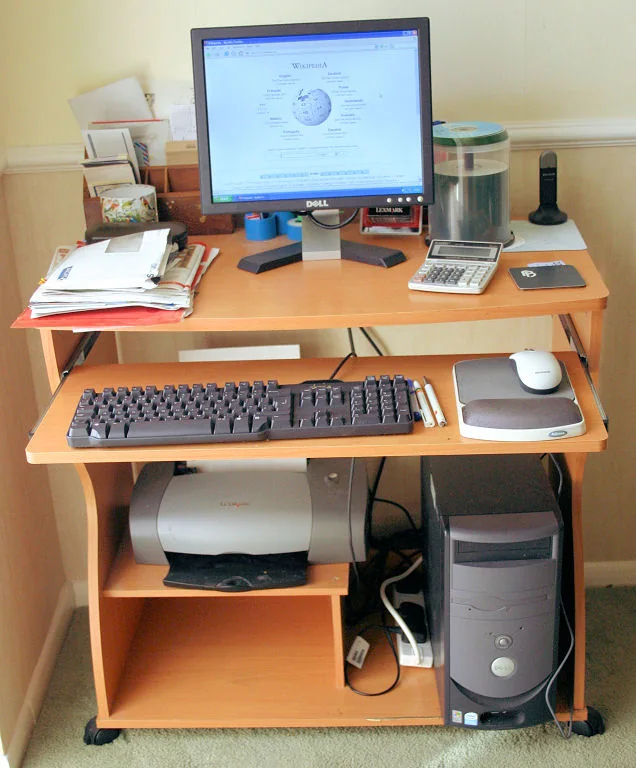
A larger monitor does not necessarily make text easier to read. Resolution, scaling, application zoom, glare, placement and the person's own access needs interact. Buying another panel before separating those factors can reproduce the same difficulty at a higher price. A useful first step is a reversible reading experiment on the current setup. The aim is to identify which adjustment helps an actual task, not to diagnose eye strain or promise that a particular display arrangement will treat a medical problem.
Choose a task and describe the difficulty
Open material representative of your work: a document, spreadsheet, browser page or image-editing panel. Write down what goes wrong. Are letters too small, menus clipped, lines too long, reflections distracting or controls difficult to locate? Note whether you lean forward, rotate your head repeatedly or keep losing your place. A specific observation points toward a different adjustment from a general wish for a better screen.
Save the starting resolution, scaling, brightness and application zoom so changes can be reversed. If the device is managed, respect administrator controls. Keep a second person or another accessible route available if a setting might make the interface difficult to restore. The baseline is a description of the current task, not a claim that every other application or user will behave the same way. Personal preferences should remain visible in the record rather than being disguised as universal ergonomics rules.
Separate resolution from the size of the interface
Resolution describes the pixel dimensions used by the display system. Scaling changes the apparent size of interface elements, while application zoom may affect only a document or page. These controls are related but not identical. Read the operating system's current display guidance and the application's own options before changing several settings together.
Try an appropriate scaling or text-size adjustment and repeat the reading task. Check menus and dialogs as well as the document. Increasing a page's zoom can make its body readable while leaving the application's toolbar too small. Conversely, changing every interface element may reduce the space available for a spreadsheet. If one older application renders poorly, investigate that application's compatibility settings rather than assuming the panel is defective. Record which element improved and which limitation remains.
Position the display for the person using it
OSHA's workstation guidance discusses monitor distance, angle, clarity and positioning in relation to the rest of the workstation. Treat those categories as prompts for evaluating your arrangement, not a single measurement that overrides individual needs. The relevant question is whether you can read the intended material without continually adopting an awkward position.
Check that the primary display is placed where the main task actually occurs. If most attention goes to a second screen, a visually symmetrical setup may still leave the head turned for much of the day. Consider chair support, keyboard placement and available desk depth together. People using particular lenses or assistive technologies may need a different arrangement. Persistent pain, visual changes or other health concerns warrant qualified advice; moving a monitor cannot establish their cause or replace professional assessment.
Change glare and brightness independently
Inspect the screen at the times of day you use it. A window or lamp may create a reflection only in the afternoon, while an arrangement that works in daylight can be uncomfortable in a dark room. Adjust the light source or screen position where practical before raising brightness to compensate for every reflection. Do not assume maximum brightness is the clearest setting for every environment.
Repeat the same reading sample after each change. Check both dark and light documents if you use them, and include any application theme essential to your work. Record whether text remains distinguishable and whether reflections still interfere with the relevant area. Color and contrast preferences differ, and accessibility settings can change more than the panel's physical specifications. Avoid claims that a particular theme, filter or advertised eye-care label guarantees comfort or prevents harm.
Test access to controls, not only the center of the page
Use the keyboard to reach essential controls, increase document zoom and inspect the edges of dialogs. Watch for buttons that disappear outside a window or menus that cannot be reached without precise pointer movement. A setup can render a paragraph beautifully while failing the task because the confirmation button is clipped. If a screen reader, magnifier or alternative input method is part of the person's workflow, include it in the evaluation.
For a fictional trial, a user might enlarge text enough to read a report but discover that a spreadsheet's frozen columns leave little useful working area. The next step could be changing the worksheet view or window arrangement, not immediately reducing text to an unreadable size. The example illustrates a tradeoff; it is not a measured result. Keep the task outcome, rather than the attractiveness of a screenshot, as the basis for choosing between settings.
Buy only for the limitation that remains
After the adjustments, describe the unresolved requirement: more readable workspace at the chosen scale, a different surface treatment, better physical adjustment or compatibility with an essential input or display connection. Compare products against that requirement and check return conditions. A larger diagonal measurement alone says little about the usable result at your chosen distance and scale.
Repeat the same tasks during any return period and keep the working settings documented. Review the setup after a change in vision, duties, furniture or software.
REFERENCES
Sources and further reading
Sources reviewed October 20, 2026. Provider instructions and product terms can change. Examples identified as fictional are editorial illustrations, not reported events or product tests.