
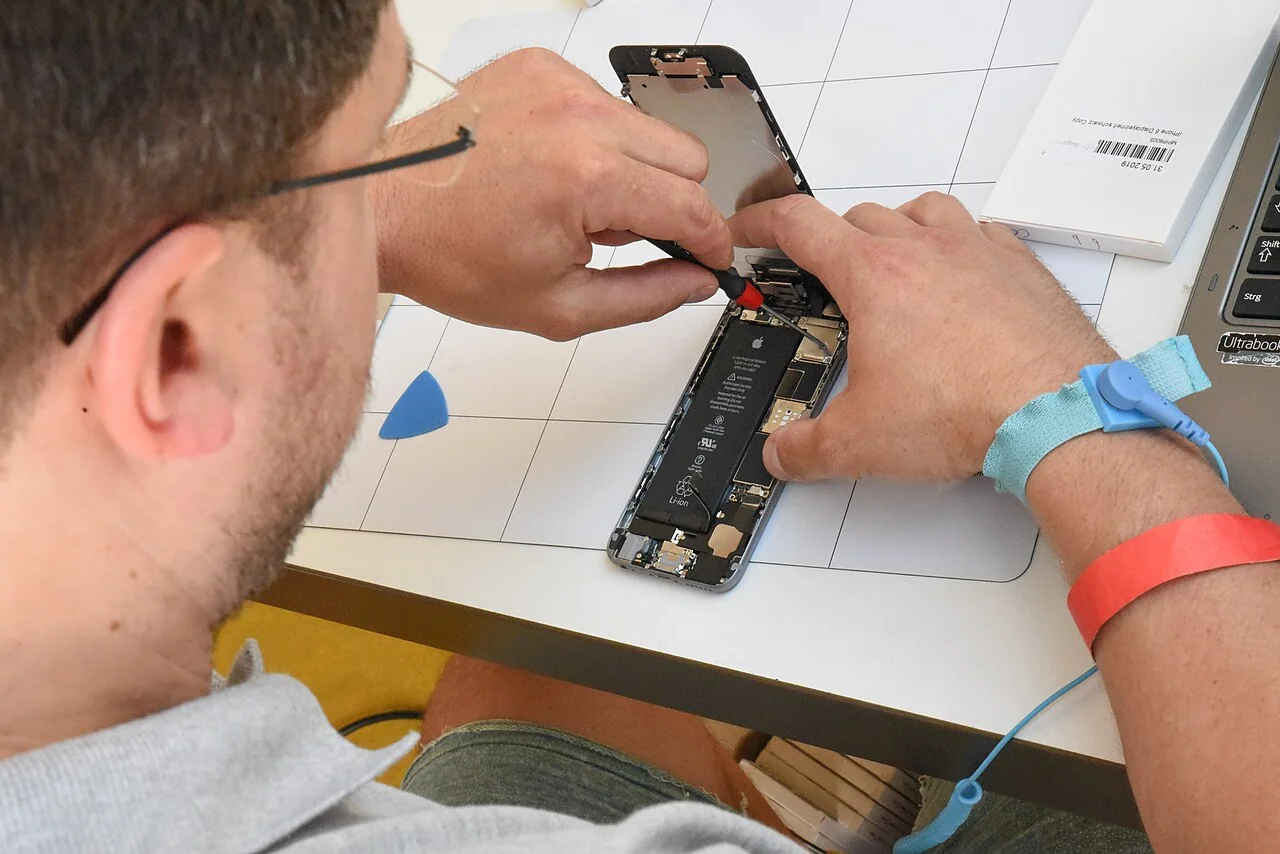
Preparing a device for repair has two separate objectives: preserve the information you need and limit access to information the repair does not require. Neither is achieved by handing over an unlocked device and hoping the technician will avoid personal material. The appropriate steps differ by manufacturer, repair route and operating-system version. Begin with the provider's current preparation instructions and keep a record of what you could complete. A repair mode, encryption or a service receipt does not remove the need for a usable backup.
Decide what would be lost if the device were erased
List locally stored material and account functions before changing settings. Include photographs, downloads, notes, authenticator entries, messaging history and work documents. A cloud icon may represent synchronization rather than an independent recoverable copy. Check whether recent material has finished transferring, and verify that a sample can be opened somewhere other than the device being repaired.
Preserve the credentials or recovery information needed to restore the backup without storing the only copy on the same device. Workplace equipment may require an administrator to handle encryption keys or approved backups. Do not improvise around those controls. If the device no longer starts, tell the service provider which preparation steps were impossible. A broken screen or dead mainboard is not permission to claim a backup succeeded. Decide whether data recovery or hardware repair is the primary objective before approving a procedure that may erase storage.
Identify the official repair route and its requirements
Record the model, serial identifier, symptoms, repair provider and whether the device will stay with you or be mailed away. Ask what diagnostics require access, whether erasure may occur and what accessories should accompany the device. A display fault and an account-support session can have different access needs. Keep the response with the service request rather than relying on a verbal assurance that everything will probably remain intact.
Apple's preparation guidance says not to give another person your account password, device passcode or security details. When certain software support requires you to enter information, it advises remaining present. That is specific guidance from Apple, not a claim that all repair providers operate identically. If a requested step seems inconsistent with official instructions, clarify it through a verified provider channel before disclosing a secret or changing an account's security.
Distinguish repair status from a backup
Some supported devices offer a dedicated repair environment. Google's Pixel documentation describes Repair mode as a limited environment separated from the user's ordinary data. Eligibility and procedures depend on the device and software. Follow the current instructions for that model; do not assume a similarly named setting on another brand provides the same protection.
Apple's current preparation documentation also distinguishes procedures according to supported software versions, including its repair or trade-in readiness features. Because these options change, check the linked official page at the time of service instead of following a universal instruction to disable a security feature. Repair preparation may alter what a technician can do, but it does not guarantee that hardware replacement or troubleshooting will preserve your data. Keep a verified backup even when a privacy-focused service mode is available.
Reduce unnecessary exposure at handover
Remove removable storage and physical SIM cards when the manufacturer's instructions and repair arrangement call for it. Review wallets, passes and accessories through the documented process. Photograph the device's physical condition and note what you are handing over. Avoid including account screens or private notifications in the photographs. A useful handover record identifies scratches, accessories and the problem to reproduce without exposing unrelated personal contents.
If a computer needs a diagnostic account, discuss whether a separate account is suitable and whether the task requires administrator privileges. A separate account does not automatically isolate every file or defeat physical access, so do not present it as a universal safeguard. For especially sensitive records, organizational policy may require removal of storage, approved erasure or a different service arrangement. Agree the scope before an unknown technician has possession of the device.
Keep a clear stop condition during the repair
Ask to be contacted if the diagnosis changes, storage must be replaced or a reset becomes necessary beyond what was agreed. Keep a reachable contact route that does not depend on the device in the workshop. Record any approved change in cost or scope. An initial estimate is not evidence that a later destructive procedure was authorized.
Do not ask a technician to bypass activation locks or management controls you cannot legitimately release. Ownership and organizational authorization need to be resolved through official channels. Likewise, do not send passwords through an ordinary email merely because the repair is delayed. If you receive an unexpected request for credentials, confirm its origin independently. The goal is a documented diagnostic path, not unrestricted access granted in response to urgency.
Inspect the returned device before retiring the backup
Compare its identifier and condition with the handover record, then test the repaired function and essential operations such as charging, connectivity, camera or keyboard as relevant. Restore through the supported process if erasure occurred. Reenable or confirm the security settings that the preparation instructions required you to change, and remove any temporary diagnostic account you authorized.
Keep the earlier backup until the restored device and a new backup have been checked. If data is missing, preserve the available evidence instead of repeatedly overwriting copies in an attempt to make the problem disappear.
REFERENCES
Sources and further reading
- 01Apple: Prepare your iPhone or iPad for service
- 02Google: Prepare your Pixel phone for repair
- 03Google: Know your data access and privacy options for repair
- 04Microsoft: Find your BitLocker recovery key
Sources reviewed October 20, 2026. Provider instructions and product terms can change. Examples identified as fictional are editorial illustrations, not reported events or product tests.